Ristretto Navigation Menu for Showit
Ristretto on Showit: navigation menu for commercial and architectural photography. See a sample and a launch check.
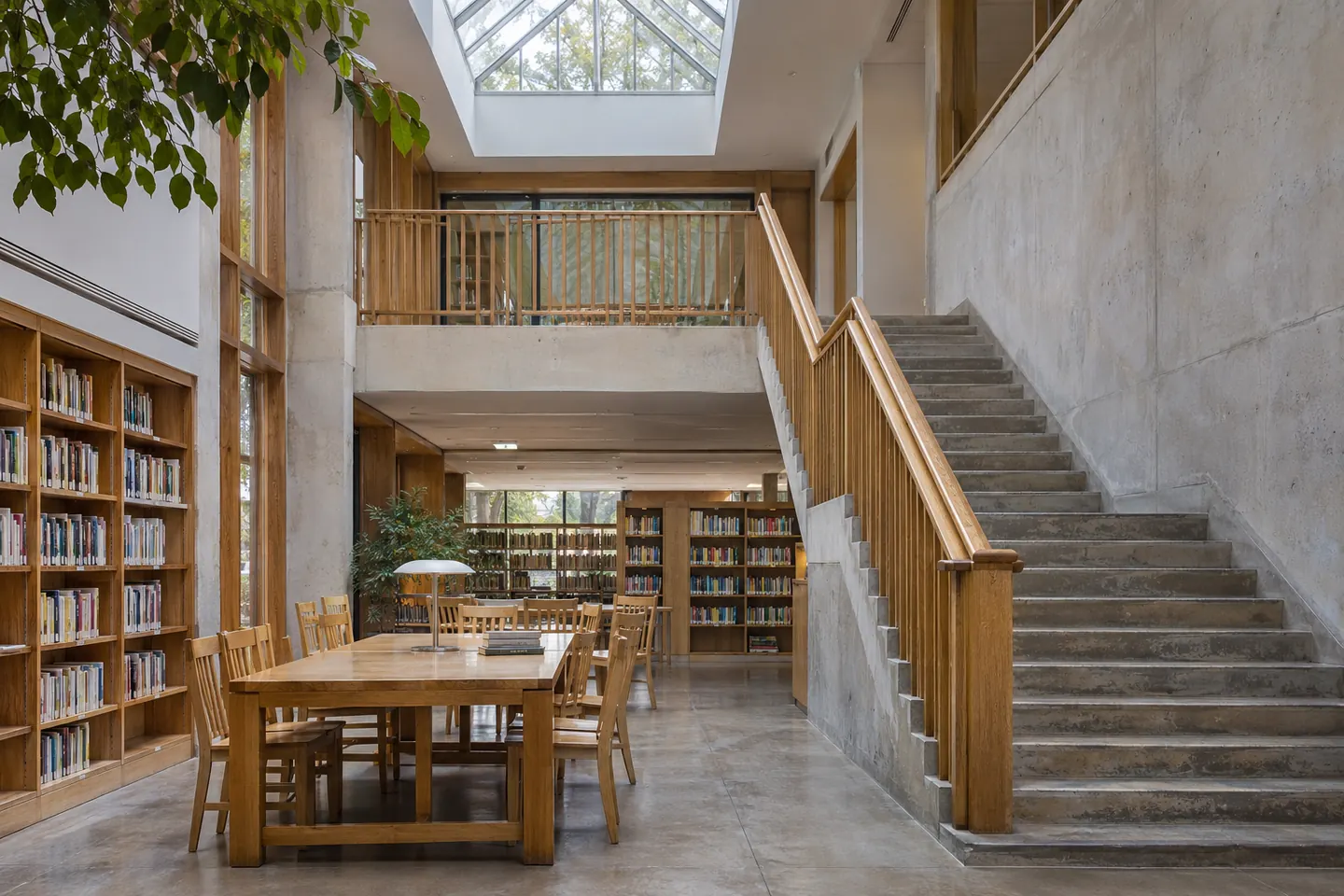
Sample navigation
Use three primary destinations for commercial and architectural photography. Keep the labels consistent across your pages.
Portfolio · About · InformationApply it to a sample brief
Link directly to the portfolio group that contains street elevation, circulation, and material details. Put the inquiry link alongside it so visitors can reach either destination from a project page.
Build the page
Keep primary links short and use familiar labels such as Portfolio, About, and Contact. Reserve specialty links for the footer or the relevant page.
Test three common journeys
Ask someone to find a gallery, confirm the type of work you take on, and locate the inquiry page. Give them a starting point on an interior page as well as the homepage.
Name links after the visitor’s goal
Try familiar labels such as Work, Services, and Contact with someone seeing the site for the first time. Give them a task and listen for the word they use for the destination. Save project or collection names for links where readers already have that context.
Check it before launch
Tab through every item at desktop and mobile widths. Check visible focus, link targets, and menu behavior with a keyboard. Record the labels they tried first. Use those observations to clarify ambiguous labels, then repeat the task with a keyboard and a phone.
Working in Showit
Compare the desktop and mobile views before publishing. Check whether the reading order, line breaks, and call to action still make sense when the layout is rearranged for a narrow screen.